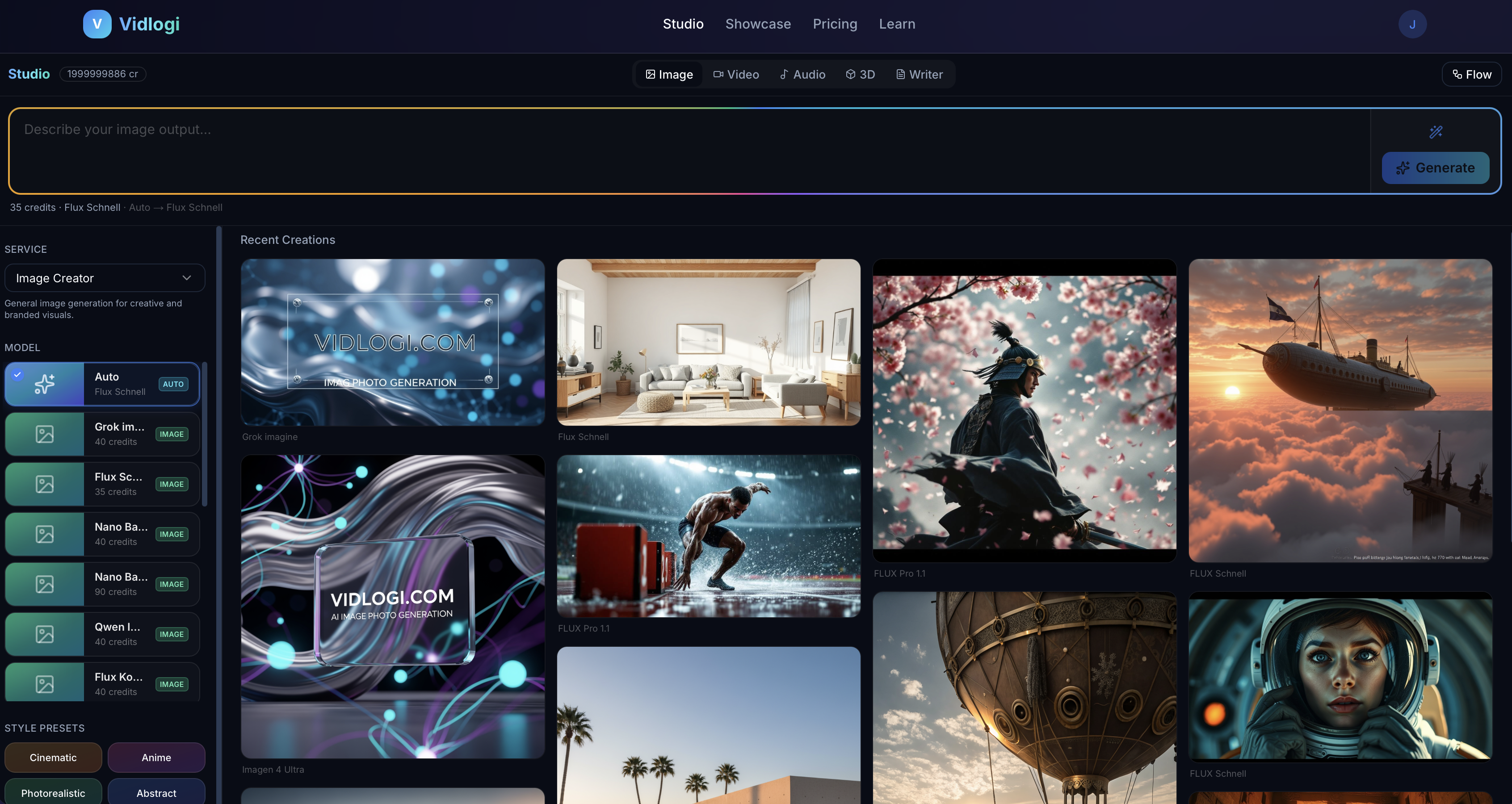
The Vidlogi Studio — your all-in-one AI creative workspace for images, videos, audio, 3D, and text.
What Is the Vidlogi Studio?
The Vidlogi Studio is the core creative workspace of the platform — a single, clean interface where you can generate AI images, AI videos, AI audio, 3D models, and AI-written text. No API keys, no GPU setup, no technical knowledge required. Just describe what you want, choose a model, and hit Generate.
Whether you are a graphic designer creating social media visuals, a filmmaker prototyping cinematic scenes, a marketer producing product images, or a developer exploring generative AI, the Studio gives you access to the world's best AI models in one place.
💡 Free plan users receive daily credits automatically. No credit card required to start generating.
Studio Interface: A Full Walkthrough
The Studio is divided into three main areas. Understanding each one will dramatically speed up your creative workflow.
① The Mode Tab Bar (Top Center)
At the top of the Studio, five tabs control which type of content you are creating:
- Image — Generate still images from text, or modify existing images. Models include Flux Schnell, Imagen 4 Ultra, Recraft V4 Pro, GPT Image 2, Grok Imagine, and many more.
- Video — Create AI video clips from text or an uploaded reference image. Models include Veo 3.1, Kling 3.0 Pro, Seedance 2.0, and others.
- Audio — Generate voiceovers (TTS), music tracks, and sound effects using models like ElevenLabs and MiniMax Music.
- 3D — Convert a photo into a downloadable 3D model in GLB/OBJ format.
- Writer — Generate AI-written content: captions, scripts, product descriptions, and long-form text.
Switching tabs loads a fresh set of models, controls, and options tailored to that content type. Your recent creations in the output panel also update to show only that type.
② The Control Panel (Left Sidebar)
The left sidebar is your configuration center:
- Service — Selects the use-case category (Image Creator, Product Photo, Portrait, etc.) which filters the available models.
- Model picker — A scrollable list of all active AI models for the selected mode. Each card shows the model name, type badge, and credit cost. The currently selected model is highlighted.
- Credit estimate — Updates in real-time as you change the model, duration, or resolution.
- Style presets — One-click style shortcuts like Cinematic, Anime, Photorealistic, Abstract. Clicking a preset appends the right style keywords to your prompt automatically.
- Advanced settings — Expand this section for fine-grained control: aspect ratio, resolution, duration (video), seed, and model-specific parameters.
③ The Prompt Bar & Output Panel (Center + Right)
The large text field at the top is your prompt input. Type your description here — as detailed or as brief as you like. Below the prompt bar, the output panel displays your generated image or video, along with action buttons for downloading, sharing, or regenerating.
Step-by-Step: Generate Your First AI Image
Follow these steps to go from zero to a stunning AI-generated image in under 60 seconds:
Navigate to vidlogi.com/studio. Sign in if prompted. The Image tab is selected by default.
For your first image, select Flux Schnell (35 credits, ~5 seconds) from the model list — the fastest model on the platform. Scroll through the other models to see the range: from budget-friendly Flux Schnell to premium Imagen 4 Ultra and GPT Image 2.
Click in the prompt field and describe your image. Start simple: "A cozy mountain cabin at night, warm light glowing through the window, snow on the ground, photorealistic, cinematic"
Click Cinematic or Photorealistic in the Style Presets section to automatically append high-quality style keywords to your prompt.
Open Advanced Settings and choose your ratio. 16:9 for widescreen, 1:1 for Instagram, 9:16 for Stories and TikTok.
Click the Generate button (top right). Watch the progress bar. Your image appears in the output panel in seconds.
Use the Download button to save your image. Use the Share button to copy a public link or publish to the Showcase.
AI Image Models on Vidlogi: Which One to Choose?
The model you choose is the single biggest factor in your output quality and style. Here is a breakdown of the main image models and their best use cases:
🚀 Fast & Budget Models
- Flux Schnell (35–40 credits) — The fastest model. Ideal for quick concept validation, social graphics, and high-volume batch generation. Generates in 3–8 seconds.
- Stable Diffusion XL (40 credits) — Best for stylized, artistic output. Great for anime, illustration, and abstract art styles.
🎯 Professional Grade Models
- Flux Dev (80 credits) — Excellent quality for most use cases. Sharper detail and better prompt adherence than Schnell. Best open-source model available.
- Recraft V4 Pro (200 credits) — Designer-grade model with outstanding brand consistency, accurate material rendering, and clean composition. Best for UI mockups and brand visuals.
- Grok Imagine (40 credits) — xAI's capable image model, great for creative and illustrative outputs.
💎 Premium & Flagship Models
- GPT Image 2 (250 credits) — OpenAI's flagship. Unmatched text rendering inside images. Ideal for infographics, product labels, and content with typography.
- Imagen 4 Ultra (90 credits) — Google's top image model. Exceptional photorealism, skin tones, and architectural detail.
- Flux 2 Pro (200 credits) — Black Forest Labs' best. Superior colour accuracy and photorealistic detail for editorial and fashion photography.
- Nano Banana Pro (90–150 credits) — Google Gemini-powered. Best for portrait photography, lifestyle images, and e-commerce product shots.
- Flux Kontext Pro (80 credits) — Specialized for image editing: change backgrounds, colors, objects, or styles in an existing image using text instructions.
💡 Pro tip: Use Flux Schnell to test your prompt concept first (40 cr). Once you are happy with the composition and content, switch to Imagen 4 Ultra or Flux 2 Pro for the final high-quality version.
Style Presets: One-Click Professional Results
The Style Presets panel below the model list lets you apply a curated set of quality-boosting keywords to your prompt with a single click. Each preset appends carefully tested adjectives and technical terms that consistently improve output quality for that style:
- Cinematic — Adds: cinematic, movie still, dramatic lighting, film grain, anamorphic lens
- Photorealistic — Adds: photorealistic, hyperrealistic, shot on Hasselblad, 8K, natural lighting
- Anime — Adds: anime style, cel shaded, vibrant colors, detailed line art, Studio Ghibli influence
- Abstract — Adds: abstract art, surrealism, vivid colors, fluid forms, non-representational
- Vintage — Adds: vintage photography, film grain, muted tones, 35mm, aged texture
You can combine multiple presets or manually edit the appended text after clicking. The presets are starting points, not restrictions.
How to Write Great AI Image Prompts
The quality of your prompt is the most important variable in your output. Follow this structure for consistently excellent results:
Formula: [Subject + details] + [Environment/setting] + [Lighting] + [Style] + [Technical quality terms]
Examples by Use Case
- Portrait: "A middle-aged professional woman with silver hair, warm smile, soft studio lighting, shallow depth of field, professional headshot, photorealistic, 8K"
- Architecture: "Modern minimalist living room, floor-to-ceiling windows, afternoon sunlight, warm wood tones, Scandinavian design, architectural visualization, ultra-detailed"
- Product: "Premium watch on a black marble surface, dramatic side lighting, reflection, macro lens, commercial product photography, 4K"
- Fantasy: "Ancient dragon resting on a mountain peak, lightning storm, volumetric fog, epic scale, cinematic, concept art, highly detailed"
- Food: "Stack of pancakes with maple syrup dripping, fresh berries, morning light, rustic wooden table, food photography, shallow DOF, appetizing"
Power Keywords by Category
- Quality: 8K, ultra-detailed, hyperrealistic, photorealistic, masterpiece, high resolution
- Lighting: golden hour, rim lighting, volumetric light, God rays, chiaroscuro, soft diffused light
- Camera: shallow depth of field, bokeh, macro, wide angle, 50mm lens, medium format
- Mood: cinematic, dramatic, ethereal, moody, vibrant, minimalist, surreal
Advanced Settings: Aspect Ratio, Resolution & Seed
Click Advanced Settings in the left panel to access fine-tuning options:
- Aspect Ratio — Choose from: 1:1 (square), 16:9 (widescreen), 9:16 (vertical/mobile), 4:3, 3:4, 2:3, 3:2. The preview updates to show the selected ratio.
- Resolution — Higher resolution produces sharper, larger images but may increase generation time on some models. Standard is sufficient for web; HD for print.
- Seed — A seed number locks the random variation. Use the same seed to reproduce nearly identical outputs with small prompt changes — perfect for iterating while keeping the composition consistent.
- Negative Prompt (some models) — Describe what you do not want in the output: "blurry, low quality, extra limbs, watermark, text"
Credits: How Image Generation Is Priced
Every image generation on Vidlogi costs credits from your balance. Here is a full breakdown:
- Flux Schnell, Grok Imagine: 35–40 credits per image
- Flux Dev, Stable Diffusion XL: 80 credits per image
- Imagen 4, Nano Banana Pro: 90–150 credits per image
- Recraft V4 Pro, Flux 2 Pro: 200 credits per image
- GPT Image 2: 250 credits per image
Free plan users receive a daily top-up of credits — enough for several Flux Schnell images every day, or one premium image every few days. Paid plans include significantly larger monthly credit allowances.
→ View Plans & Credit PackagesWhat to Do With Your AI Images
Once you have generated an image you love, here is what you can do next:
- Download — Save in full resolution to your device (PNG or JPEG depending on model).
- Share to Showcase — Publish to the Vidlogi Showcase for the community to discover and draw inspiration from.
- Copy shareable link — Each generated image gets a permanent public URL you can share on social media, embed in websites, or send to clients.
- Animate it — Switch to the Video tab, select an Image-to-Video model (Kling 2.5 Turbo Pro or Veo 3.1), upload your generated image, and bring it to life as a video.
- Edit it — Use Flux Kontext Pro to make targeted edits: change the background, adjust lighting, swap colors, or apply a style transfer.
- Create 3D from it — Upload the image in the 3D tab and generate a textured 3D model using Trellis 3D or Hunyuan3D v2.
Tips From Power Users
- Iterate fast, produce slow. Use cheap models (Flux Schnell) to validate your concept. Only switch to expensive models for your final output.
- Use the Surprise Me button when you feel uninspired. It generates a random, creative prompt you can modify and use.
- Save your best prompts. There is no prompt history (yet), so copy your favorite prompts into a notes app. Reusing a great prompt with a different seed generates fresh variations.
- Match model to use case. A prompt that looks mediocre on Flux Schnell might look stunning on Imagen 4 Ultra. If a prompt concept feels right but the output looks flat, try upgrading the model rather than rewriting everything.
- Check your credit balance in the top bar before starting a generation session. You can see your exact balance next to your avatar.
Frequently Asked Questions
Do I own the images I generate?
Free-plan image outputs are for personal and non-commercial use only. If you need commercial use, generate on a paid plan. Commercial use on paid plans remains subject to the terms of each underlying AI model and applicable law. See our Terms of Service for details.
Can I use Vidlogi without a paid plan?
Yes. Free accounts receive daily credits sufficient for several image generations. Premium and business plans unlock larger credit allowances, private generations, HD downloads, and priority queue access.
How do I get better results from my current model?
Add more specific details to your prompt, apply a Style Preset, and try the image prompting guide for tested keyword formulas.
What is the difference between Flux Schnell and Flux Dev?
Flux Schnell is optimized for speed (3–8 seconds, 40 credits). Flux Dev is optimized for quality (15–30 seconds, 80 credits) with significantly better prompt adherence and detail. Use Schnell for drafts, Dev for finals.
Can I generate NSFW content?
No. Vidlogi enforces a strict content policy across all models. Generating harmful, explicit, or illegal content is prohibited and will result in account suspension.
→ Open the Studio and Start Creating